
Make a 3D clothing mockup on your phone
A touch-first workflow for creating and reviewing a 3D clothing mockup from an iPhone or iPad.
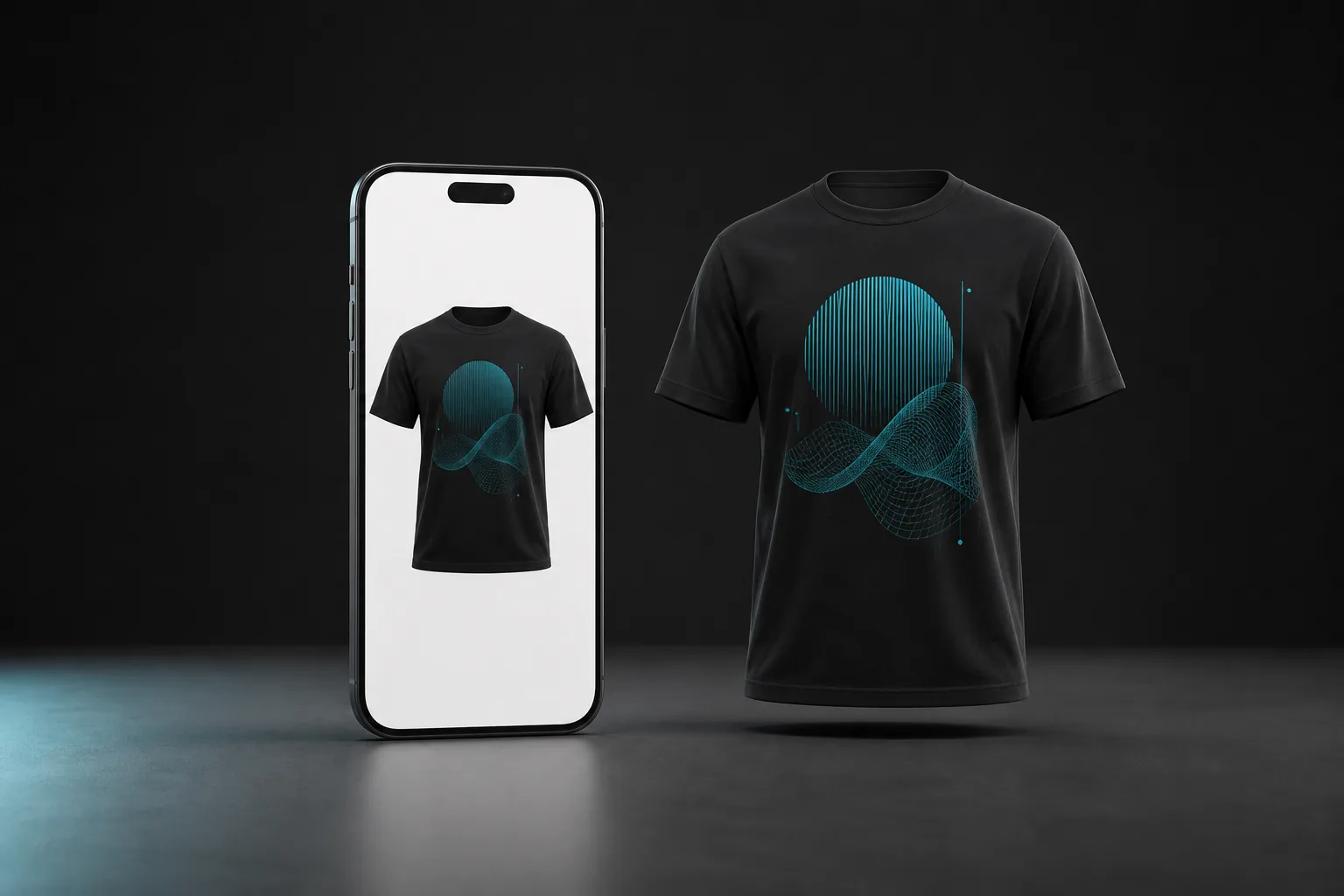
To make a 3D clothing mockup on your phone, open a mobile garment editor, choose the clothing model, add the finished artwork, and use touch controls to move, scale, and rotate it. Inspect the garment from several angles, set a simple color and scene, then export an image for review or presentation.
The phone is well suited to focused mockup decisions because the artwork, garment, and camera can stay in one direct-touch workflow. Prepare detailed artwork elsewhere when needed. The mobile editor should help you judge the design on clothing, not force you to rebuild every part of the creative process on a small screen.
Prepare a phone-friendly source file
Save the artwork where the device can access it reliably and keep a high-resolution original. A transparent PNG is practical for many mockup placements. Check the file edge before importing so a stray background or crop does not become part of the garment design.
If the artwork needs major drawing, typography, or vector changes, complete those first in the appropriate tool. Repeatedly exporting a weak source through several apps can reduce quality and make it harder to identify the latest file.
Use touch controls in a deliberate order
Direct manipulation is fast when each gesture has one purpose. Avoid changing position, scale, camera, and garment color at the same time.
Choose clothing
Pick the T-shirt, hoodie, cap, pants, polo, or other garment that matches the review. Start with the silhouette before choosing presentation details.
Place the artwork
Move the design into its main zone, set the scale, then make small position and rotation corrections. Return to a straight front view to confirm balance.
Rotate and inspect
Use the 3D view to check garment shape and how artwork reads from another angle. Keep important details away from edges that disappear in perspective.
Set and export the scene
Choose color, camera, lighting, and background settings that keep the design readable. Export the visual without replacing the original artwork file.
Keep the mobile review organized
Limit each review round to a small number of meaningful variations. If you compare garment colors, keep artwork placement and camera stable. If you compare placement, keep the garment and scene stable. Controlled comparisons are easier to evaluate on a phone and produce clearer feedback.
Store exported images with enough context to identify the garment and option. Do not place private client names, order data, or unnecessary personal information inside the mockup. Share only the assets needed for the design decision.
Understand mobile and offline limits
The current w3D App Store listing says the editor works offline after installation, which is useful when reviewing designs without a reliable connection. Initial app downloads, store actions, and any asset that has not yet reached the device can still require connectivity.
A phone mockup remains a visual presentation. Confirm physical measurements, printable area, garment construction, material, and decoration requirements with the manufacturer. Use a sample when the real fabric or print behavior could change the decision.
Questions about this workflow
Can I create a clothing mockup on an iPad as well as an iPhone?
Yes. The current w3D listing supports iPhone and iPad, so the same garment, artwork, scene, and export workflow is available on supported Apple devices.
Will making a mockup on my phone reduce the artwork quality?
The mockup export and the production artwork are separate. Keep the original high-resolution file and send that source to the printer. Use the phone export as a visual reference.